
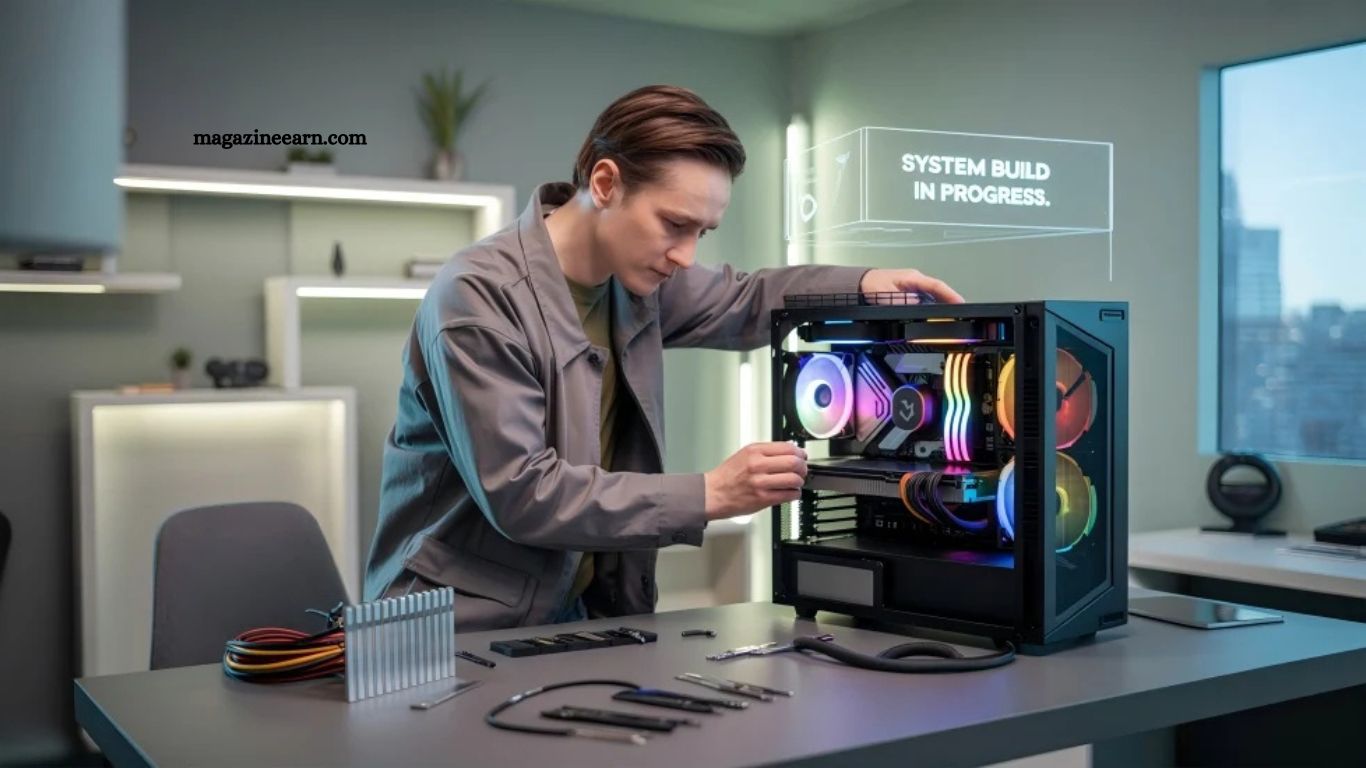
Building your own PC is a rewarding process that gives full control over performance, design, and budget. Instead of buying a prebuilt system, you can choose each component based on your needs, whether for gaming, office work, or content creation.
This guide explains every step in a simple and practical way, making it easy even for beginners. From selecting parts to assembling and setting up your system, you will learn how to create a powerful and reliable custom PC.
Read More: Virtual Reality vs Augmented Reality: What’s Next
Why Build Your Own PC?
A custom PC gives you several advantages:
- Better performance for your budget
- Full control over every component
- Easy future upgrades
- Custom design and cooling options
- Longer lifespan compared to prebuilt systems
Whether you want a gaming PC, editing workstation, or general-use computer, building it yourself ensures maximum value.
Choose Your PC Purpose
Before buying parts, decide the main use:
- Gaming PC → Focus on GPU and fast processor
- Office PC → Balanced performance, lower power usage
- Content creation PC → Strong CPU, high RAM, fast storage
- Programming PC → Stable performance, multitasking support
A clear purpose helps you avoid overspending on unnecessary components.
Select the Right Components
A PC consists of several key parts. Each one plays an important role.
Processor (CPU)
The brain of your computer. Choose based on performance needs and budget.
Motherboard
Connects all components. Must match CPU socket type.
Memory (RAM)
Handles multitasking. Minimum 16GB recommended for modern use.
Storage (SSD/HDD)
SSD gives faster speed. NVMe SSD offers the best performance.
Graphics Card (GPU)
Important for gaming, design, and video editing.
Power Supply (PSU)
Provides stable power. Always choose a trusted brand with proper wattage.
PC Case
Holds all components and ensures airflow.
Cooling System
Air cooling or liquid cooling keeps the temperature under control.
Prepare Your Workspace
Before assembly:
- Use a clean, static-free surface
- Keep tools ready (screwdriver, cable ties)
- Organize all components
- Avoid carpeted areas to reduce static risk
Install the CPU on the Motherboard
- Open the CPU socket carefully
- Align CPU correctly (match triangle marks)
- Place gently without force
- Lock the socket lever
This step requires precision—avoid rushing.
Install RAM Modules
- Locate RAM slots
- Open side clips
- Insert RAM sticks firmly until click sound
- Use recommended dual-channel slots for performance
Install Storage (SSD/HDD)
- For NVMe SSD: insert into the M.2 slot and secure with a screw
- For SATA SSD/HDD: connect with the SATA cable and the power cable
Mount Motherboard Inside Case
- Align the motherboard with the case standoffs
- Screw it carefully in place
- Ensure all ports match rear panel openings
Install Power Supply (PSU)
- Place PSU in the designated compartment
- Secure with screws
- Connect the main power cables to the motherboard and components
Install Graphics Card (GPU)
- Insert the GPU into the PCIe slot
- Lock it firmly
- Connect the required power cables from the PSU
Connect All Cables
Proper cable management improves airflow and appearance:
- Motherboard power cable
- CPU power cable
- GPU power cable
- Storage cables
- Front panel connectors
Use zip ties for a clean setup.
First Boot and BIOS Setup
- Connect the monitor, keyboard, and power
- Turn on the system
- Enter BIOS (usually DEL or F2 key)
- Check if all components are detected
- Enable XMP profile for RAM performance
Install Operating System
- Use a USB drive with the Windows or Linux installer
- Follow the installation steps
- Install drivers for the GPU, motherboard, and network
Final Testing and Optimization
After installation:
- Test system stability
- Monitor temperatures
- Update drivers
- Install essential software
Your PC is now fully ready.
Common Mistakes to Avoid
- Incorrect CPU installation
- Forgetting power cables
- Poor cable management
- Buying incompatible components
- Skipping BIOS updates
Frequently Asked Questions
Is building a PC difficult for beginners?
No, it is simple if you follow step-by-step instructions carefully.
How long does it take to build a Usually
Uay, 1 to 3 hours for first-time builders.
What is the most important PC component?
CPU and GPU are the most important for performance.
Do I need technical skills to build a PC?
Basic understanding is enough, no advanced skills required.
Can I mix different brands of PC parts?
Yes, as long as components are compatible.
What should I do after assembling a PC?
Install the operating system and update all drivers.
Conclusion
Building your own PC is a practical and valuable skill that offers better performance control, cost efficiency, and upgrade flexibility. By carefully selecting compatible components and following each assembly step, even beginners can create a fully functional and powerful system. With proper setup and optimization, your custom-built PC will deliver reliable performance for gaming, work, or creative tasks for years to come.
